About Zotero
If you are writing academic essays or doing academic research, you need the right tools for the job. And one of the best tools is Zotero.
Zotero is a free tool that acts as your personal research assistant. It allows you to do the following:
- Collect research materials (from academic papers to newspaper articles) and store them on your local device
- Organise your research materials
- Manage your metadata (all that extra information about papers and articles such as author, publication date, title, publication etc.)
- Cite while you write, in whatever format you want (MLA, APA)
- Produce reference lists at a single click
- Collaborate with others
Zotero does all this for free. It is a project of the non-profit Digital Scholar (https://digitalscholar.org), which is dedicated to developing research and publishing tools for digital scholars.
Why Use Zotero
If you have ever been in any of the following situations, this is where you would use Zotero:
- I want to find some academic papers for my essay!
- I want to save copies of these papers, and find them again easily.
- I have lots of papers, but the citations are all over the place. I need to tidy up the metadata.
- My internet is terrible. I need to have all the academic papers that I need at my fingertips, without relying on the internet.
- I want a tool that can help me keep track of my research materials.
- I hate citing things. I need a clever robot to help me!
- I need to produce a reference list. It’s so hard!
How to Get Hold of Zotero
So if any of these are you, then you should download Zotero. My advice is to download the desktop version instead of the mobile version.
First of all, go here: https://www.zotero.org, and click the big button saying “Download.”
Once you have installed Zotero, you should also install Zotero Connector. The download page https://www.zotero.org/download/ should detect your browser and give you the option to install the right connector for your browser.
- Zotero is the main software that manages your research database
- Zotero Connector is a little browser extension that allows your web browser to talk to Zotero.
Try installing both.
Pro tip: To use Zotero Connector, you need to have Zotero open on your computer in the background.
Learning Zotero
Now let’s find out how to use Zotero. Let’s say that you are writing an essay on why cats are cute. An important topic! So first, you should go online to a good database for academic papers (Zotero can access all kinds of materials, but let’s start with JSTOR). Visit https://jstor.org
Searching
You’ll need to be logged into Parami’s VPN to use JSTOR. You can tell if you are logged in or not because you will see at the top of the page a little message saying “Access provided by Parami University”, as below.

If you don’t see this, then log in to the VPN first. This is important.
Pro Tip: Once you have visited JSTOR once from Parami’s VPN, the site will remember that you are trusted by saving a cookie in your browser, so you can disconnect and continue to use JSTOR.
Okay! So now all you need to do is put some seach terms into the box and click “search”. I’ve searched for the terms cats and cute. These are my results.
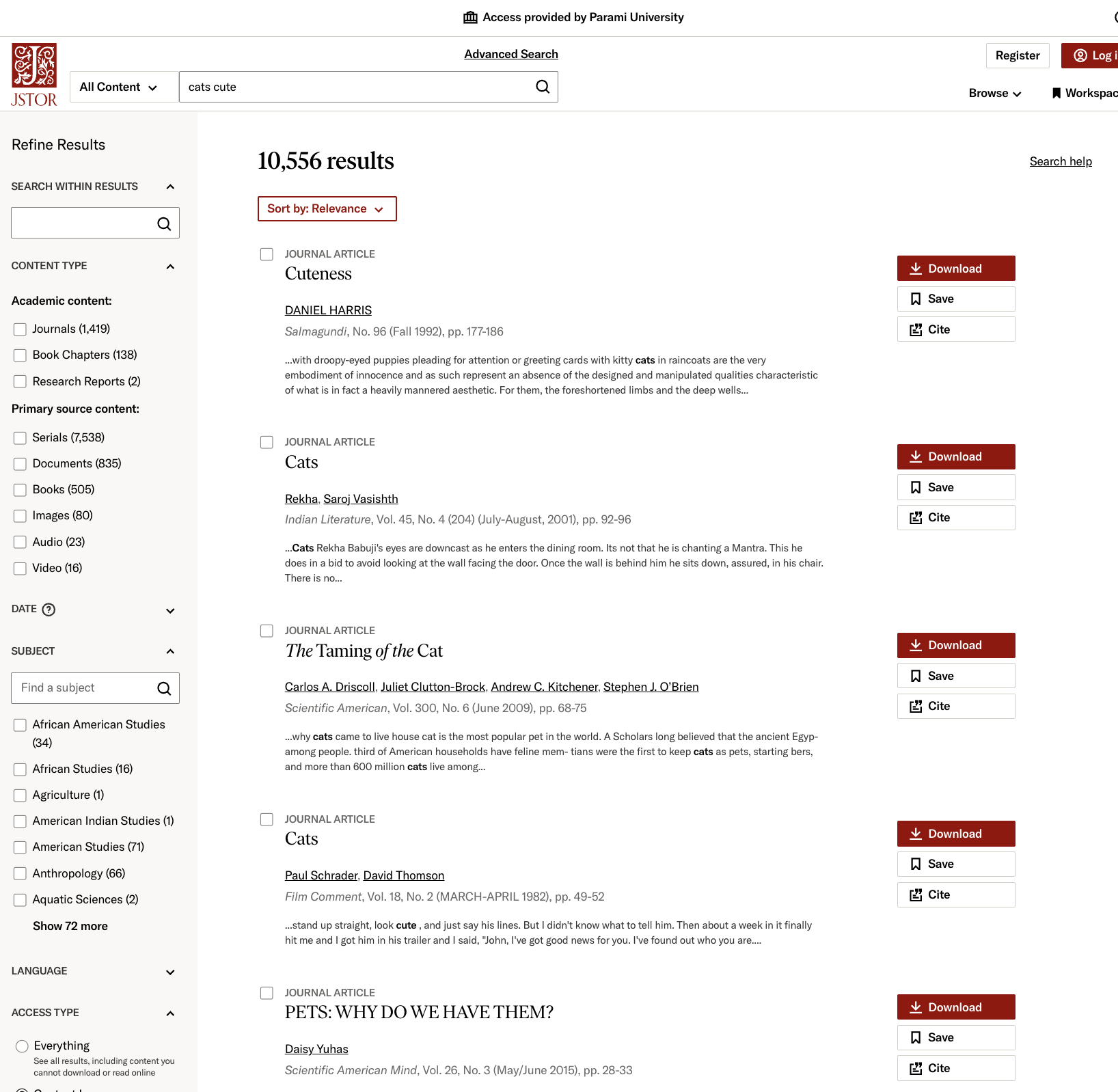
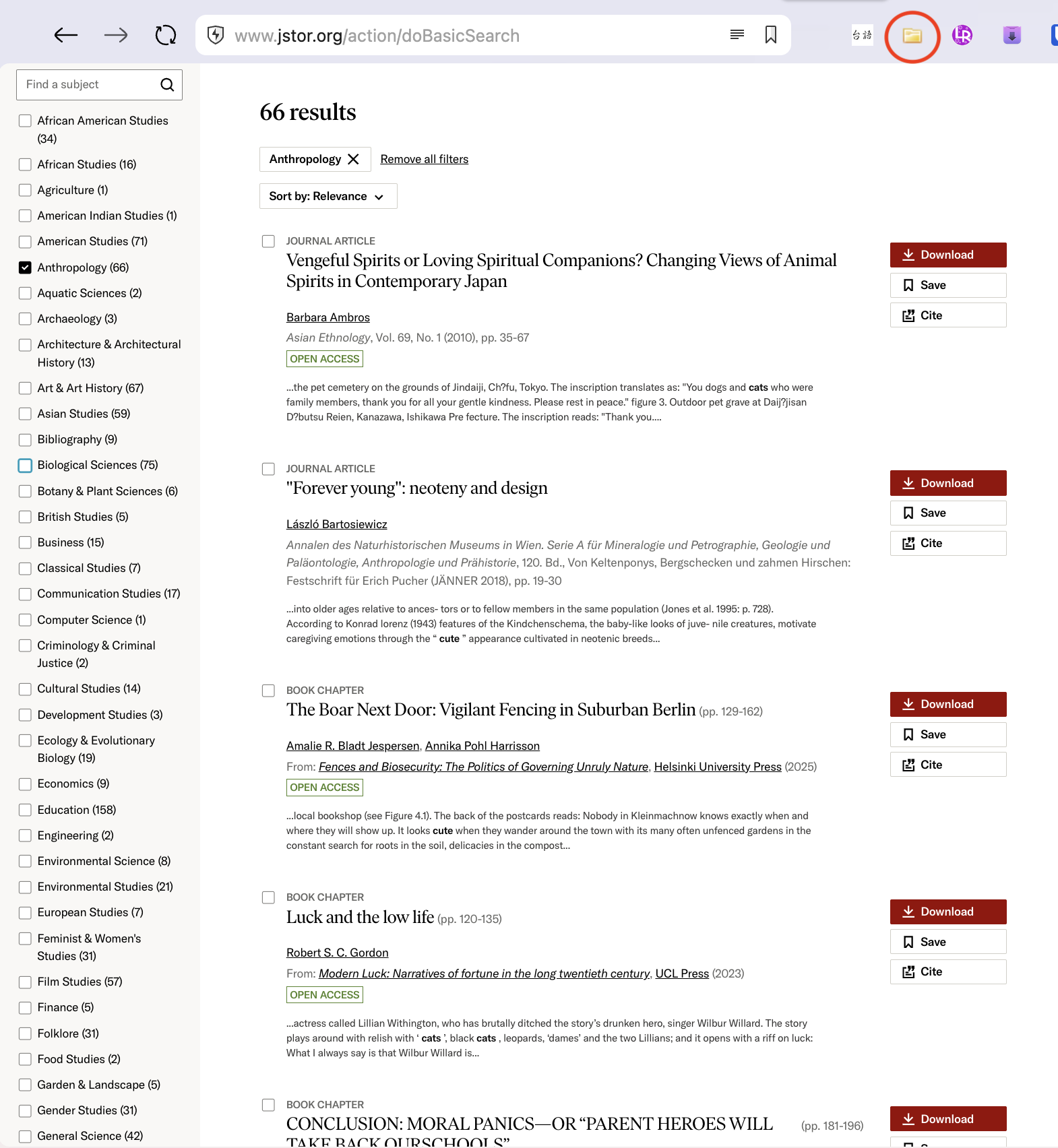
10,556! This is a sign that you have hit on an important research topic. Who doesn’t care about the cuteness of cats. But maybe that’s too many references. Let’s say that I’m interested in narrowing in. So I can select a subject from the menu on the left. Here, I’m going to select “Anthropology”.
Capturing Your Search
66 results! That’s more manageable. And look at the results: Vengeful Spirits, netoeny (the maintaining of juvenile characteristics into adulthood — something you see in domestic cats, hence… cute), boars in Berlin, and lots more… Some of this is useful. So I want to capture it. Look at the screenshot above. In my toolbar, there’s a little folder icon, which I’ve put a red circle round. Try clicking this, and you get something like this popping up:
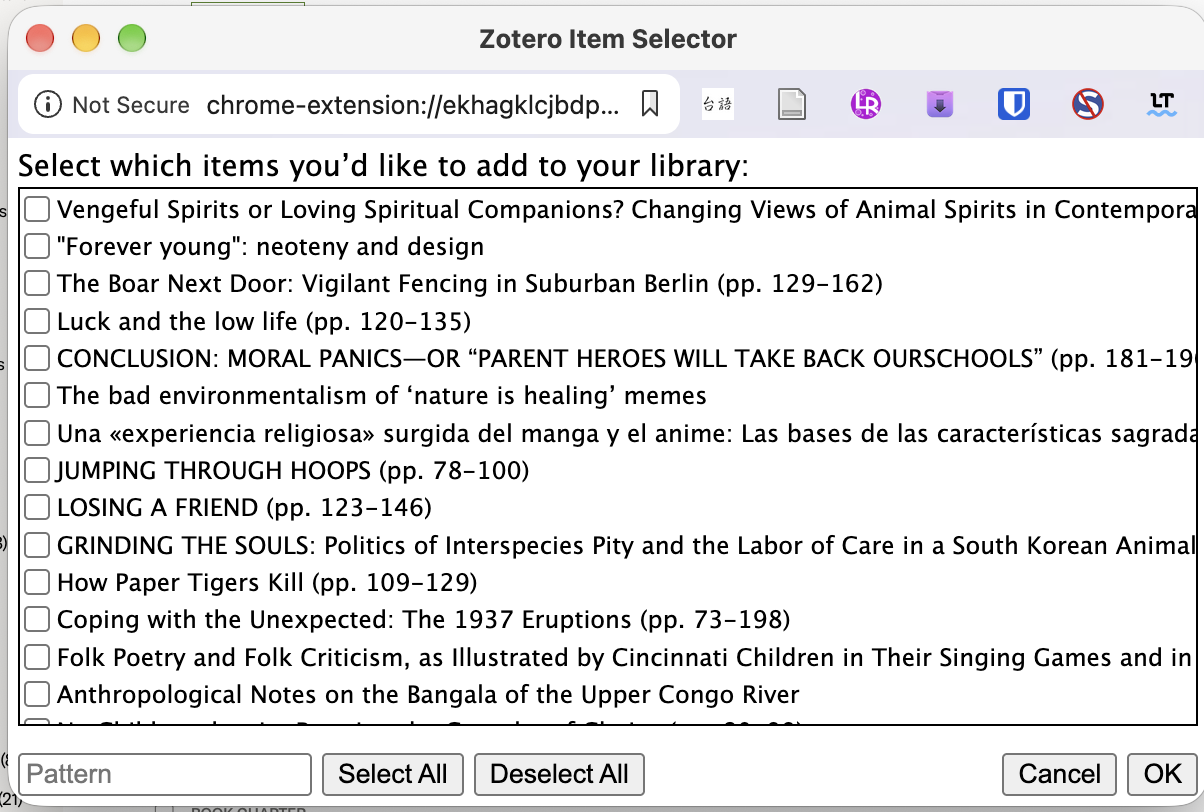
Now you can click the ones you want, and then click OK. This will do two things:
- It will pull all the rich metadata about the publication / paper / information into your database.
- It will download your own copy of any PDFs or associated material.
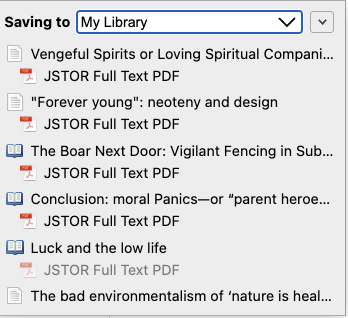
So if I select what I want and click OK, I get this little notification popping up in my browser. You can see that Zotero is downloading the reference, and the associated PDF.
Exploring Your Research Library
Now if I go to my Zotero app (not my browser), I can see that all these references are there, tidily downloaded.
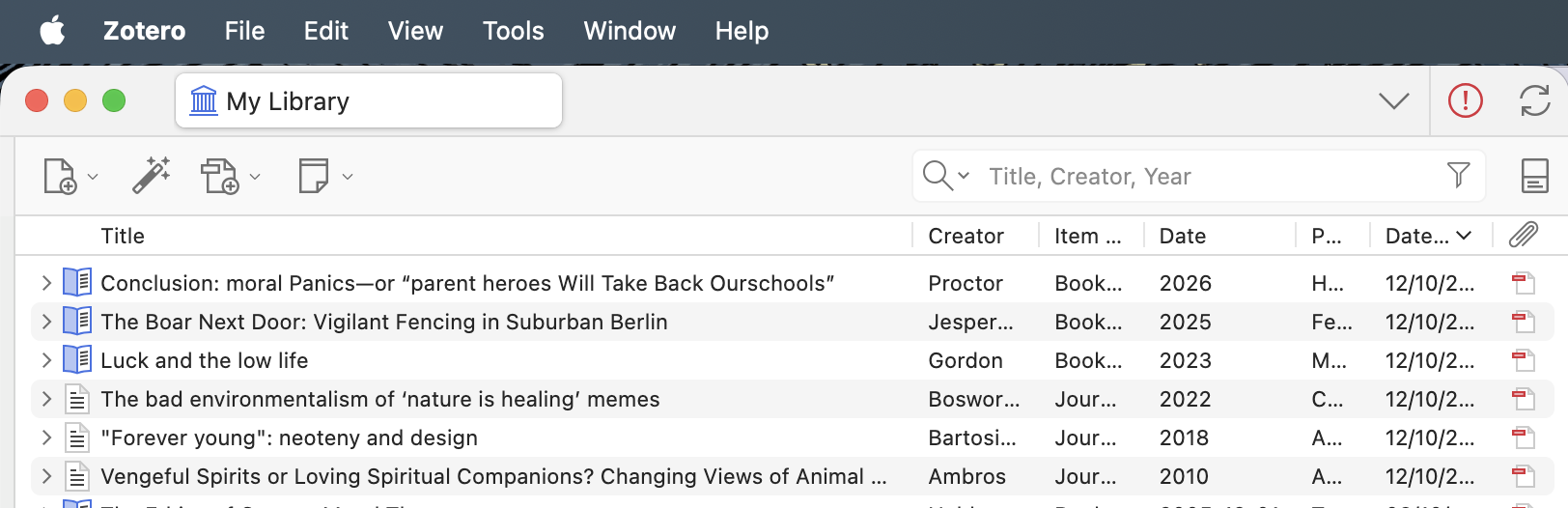
- If you single click the reference, you will be able to view all the metadata. Zotero has very accurate metadata, but sometimes you may need to make a few small corrections.
- If you double click the reference, you will be able to view the individual papers. These are on your device and not online! Thsi means that whatever your internet is doing, you can still read academic papers. Neat, eh?
What Next 1: Inserting Citations
There are two things you can do from here. The first is to cite references in your work. Try opening up a new document and typing a few lines, as I have done here. Because I have lots of papers on Chinese philospohy in my Zotero, and only a few on cute cats, I’m using Chinese philosophy an example.
Now look at the menu. If you have installed Zotero Connector (see above), you should see that there’s a new menu item in Google Docs that reads “Zotero”. I’ve marked it in red.
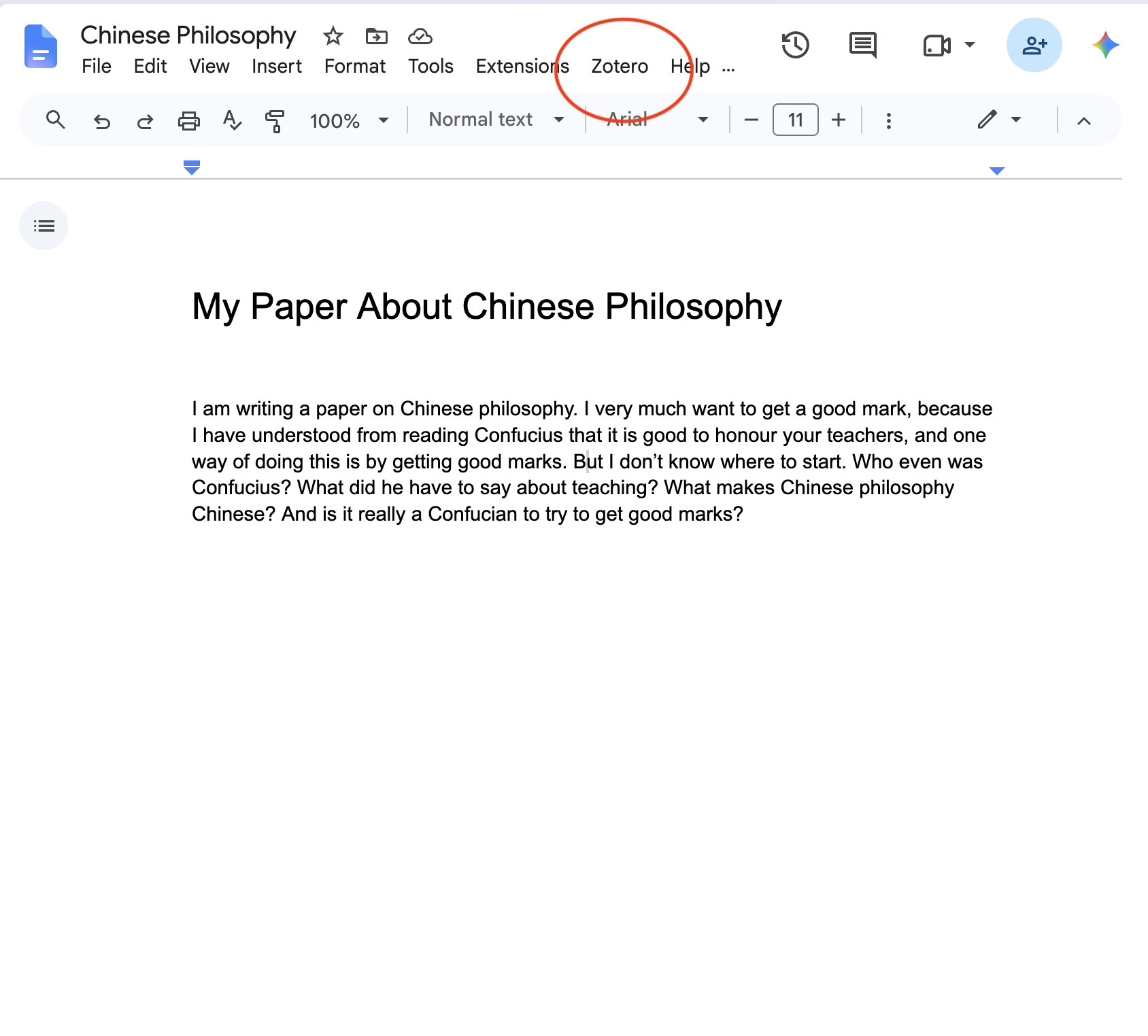
Pro tip: If you use Word, LibreOffice or other tools, you can download a Zotero plug-in (see the linke here: https://www.zotero.org/support/word_processor_integration), but here I’m going to focus on Google Docs.
Click that menu item and a window appears that allows you to search your database.
Select the place where you want to put a citation in your essay (just put the cursor in the relevant spot) and then click “Zotero > Add/Edit citation.” A window should pop up.
Pro tip: If it’s the first time you’ve used Zotero with Google Docs, you may need to give your browser, and Google Docs, permission to use the connector. The popups will talk you through this.
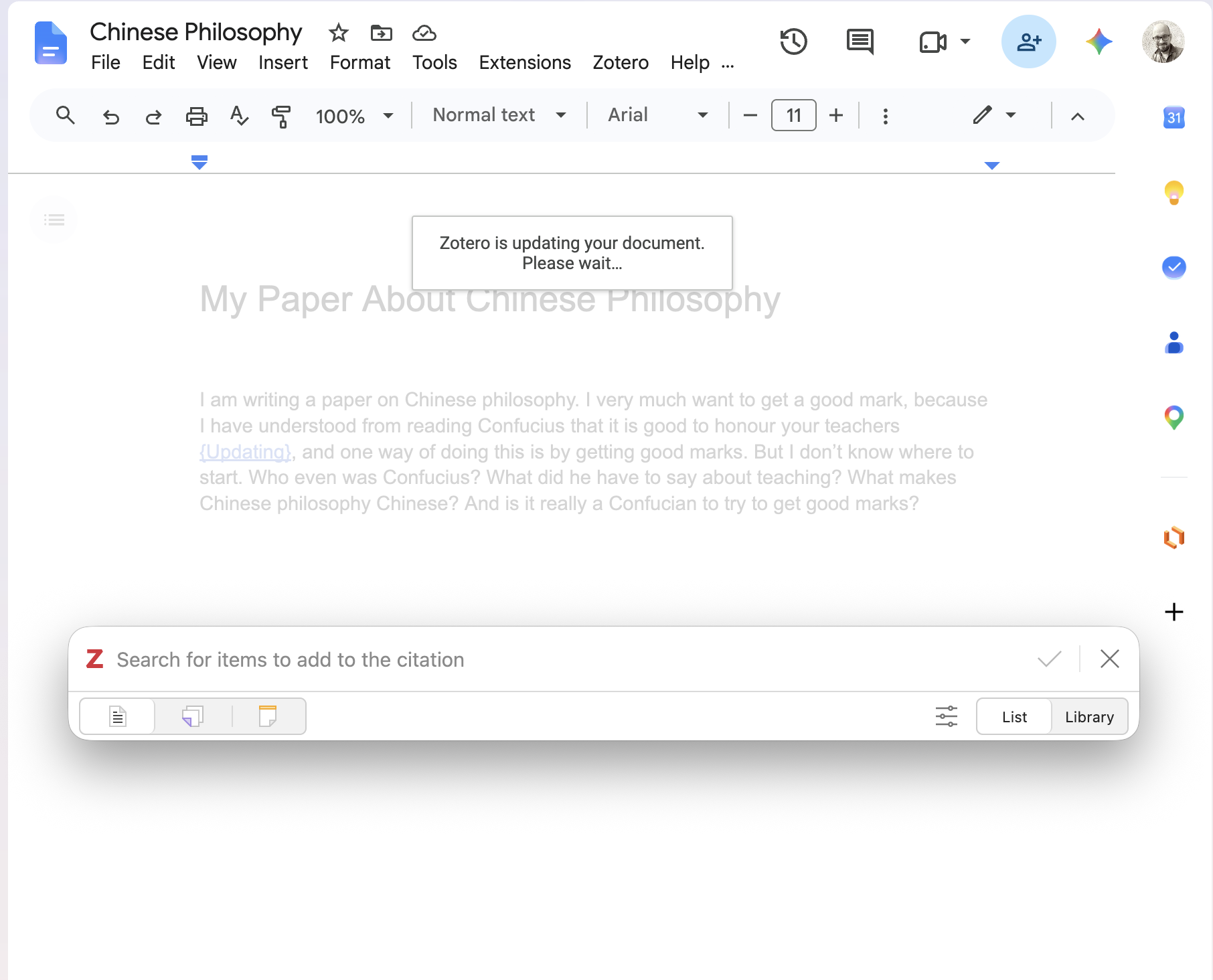
You can enter a search, or explore the popup window (try selecting “library” for example, or entering a search). Let’s say I search for Confucius and Education
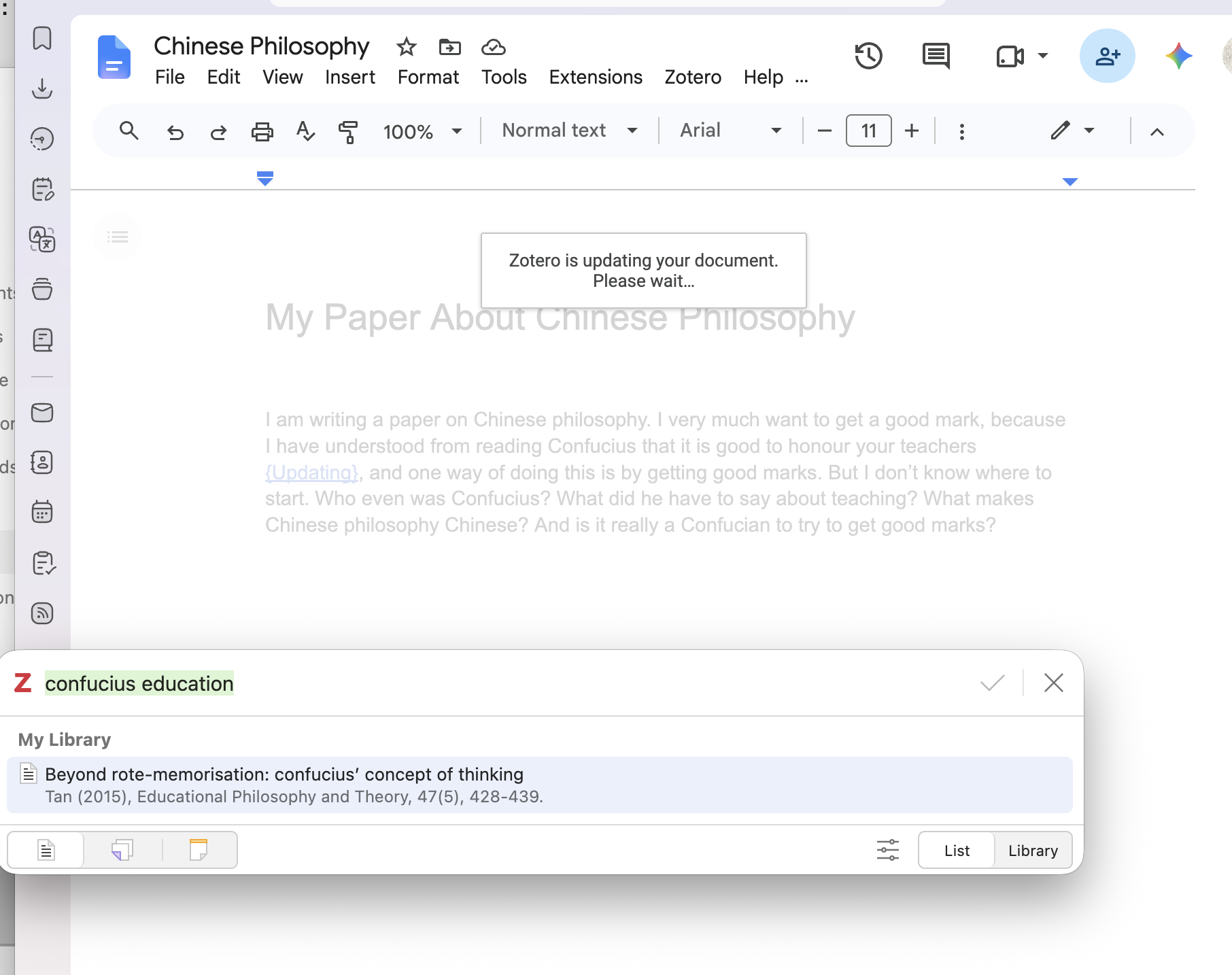
Amazing! I have something in my reference list already, and it’s a good paper that I know is directly relevant. So I just click to select it, then click the tick-mark by the search box. You can see that the reference has been introduced (Tan, 2015), and when I hover over it, it appears as a Zotero link.
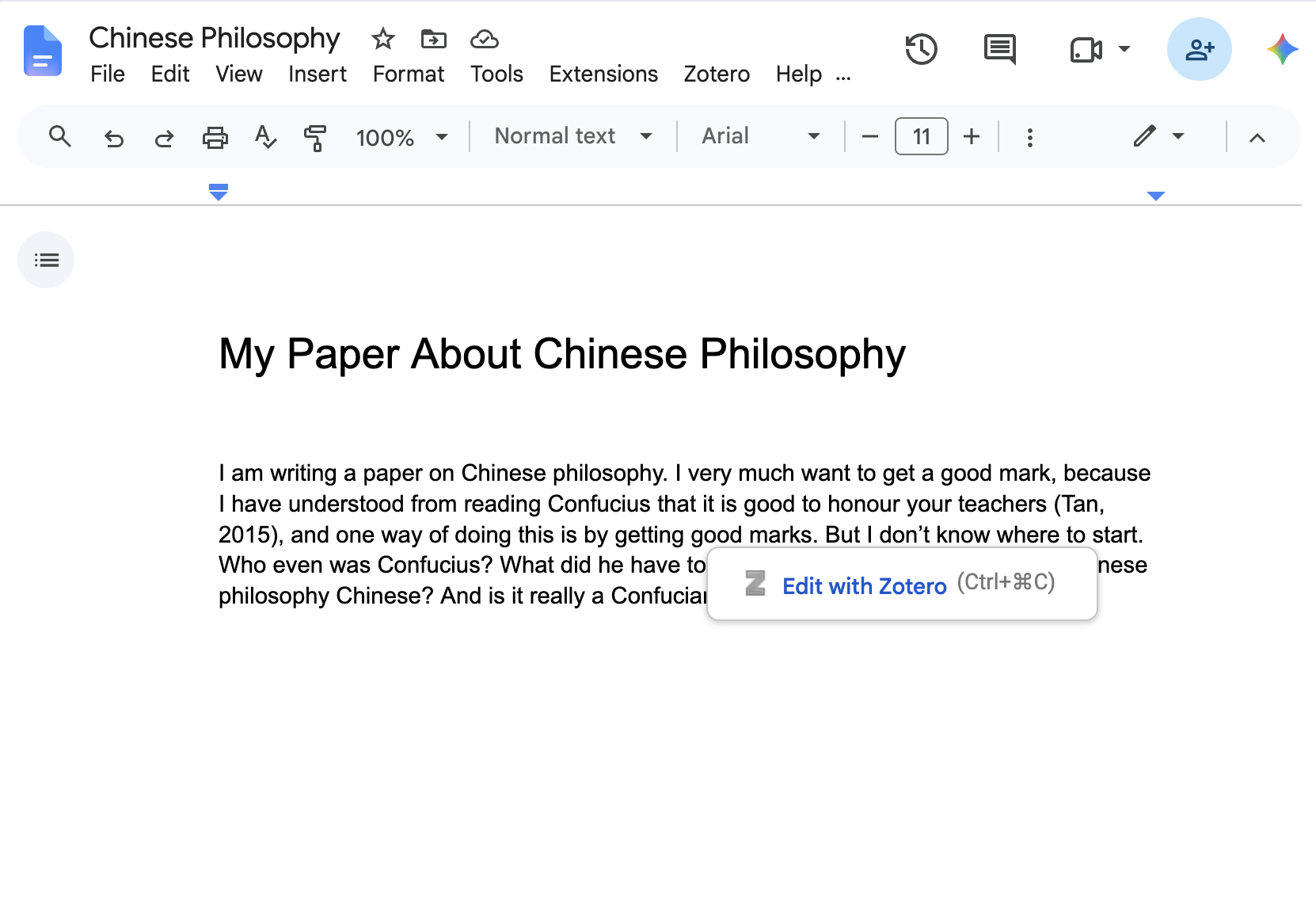
Let me put a few more in. My paper now looks like this.
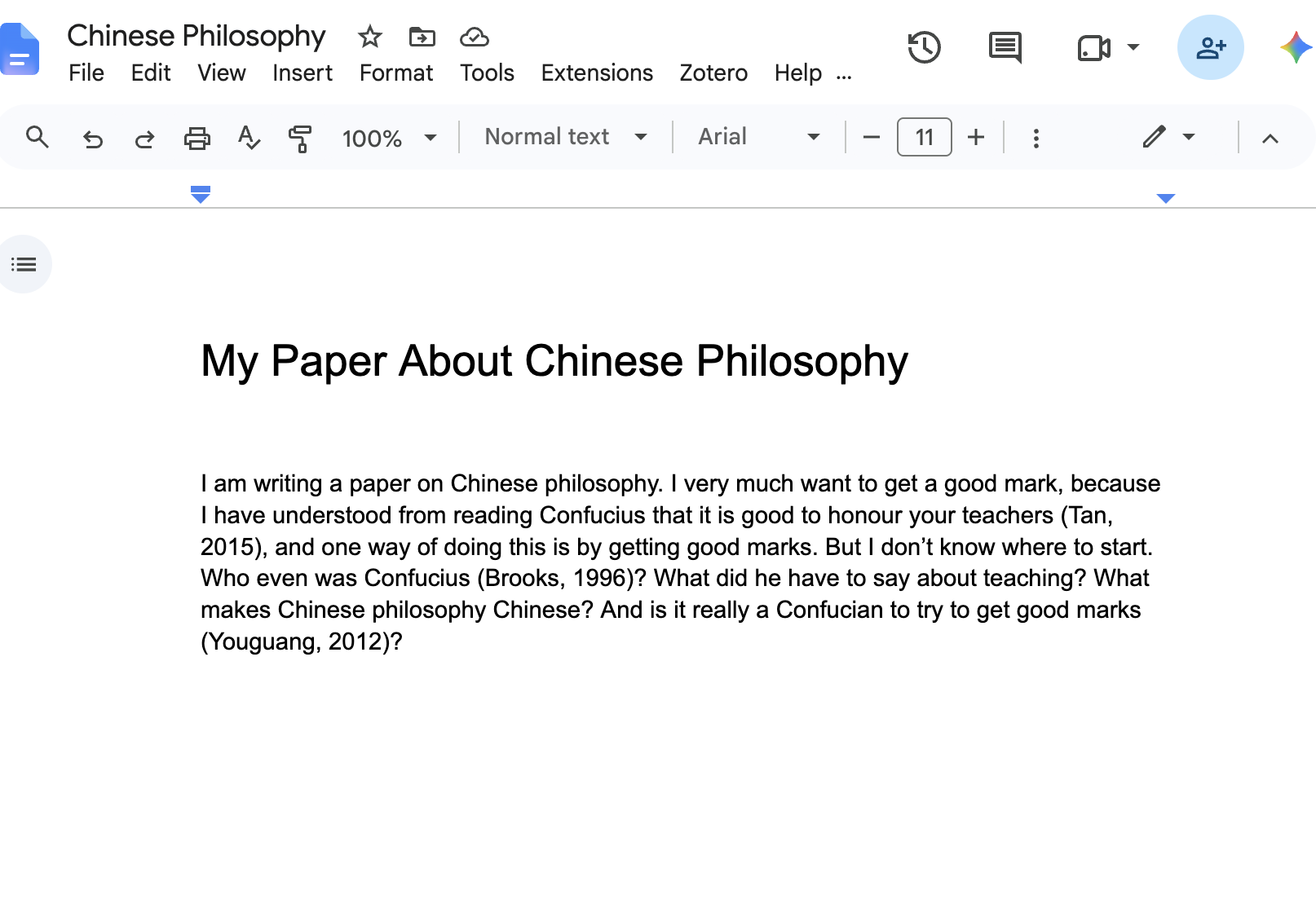
What Next 2: Including a references list.
Okay. So my paper is now finished (I didn’t say it was a good paper). So I need a references list. This is now really easy.
- Click in the document where you want the references list.
- Go to Zotero > Add/edit bibliography
You should find that it inserts a reference list like this (this is a screenshot):
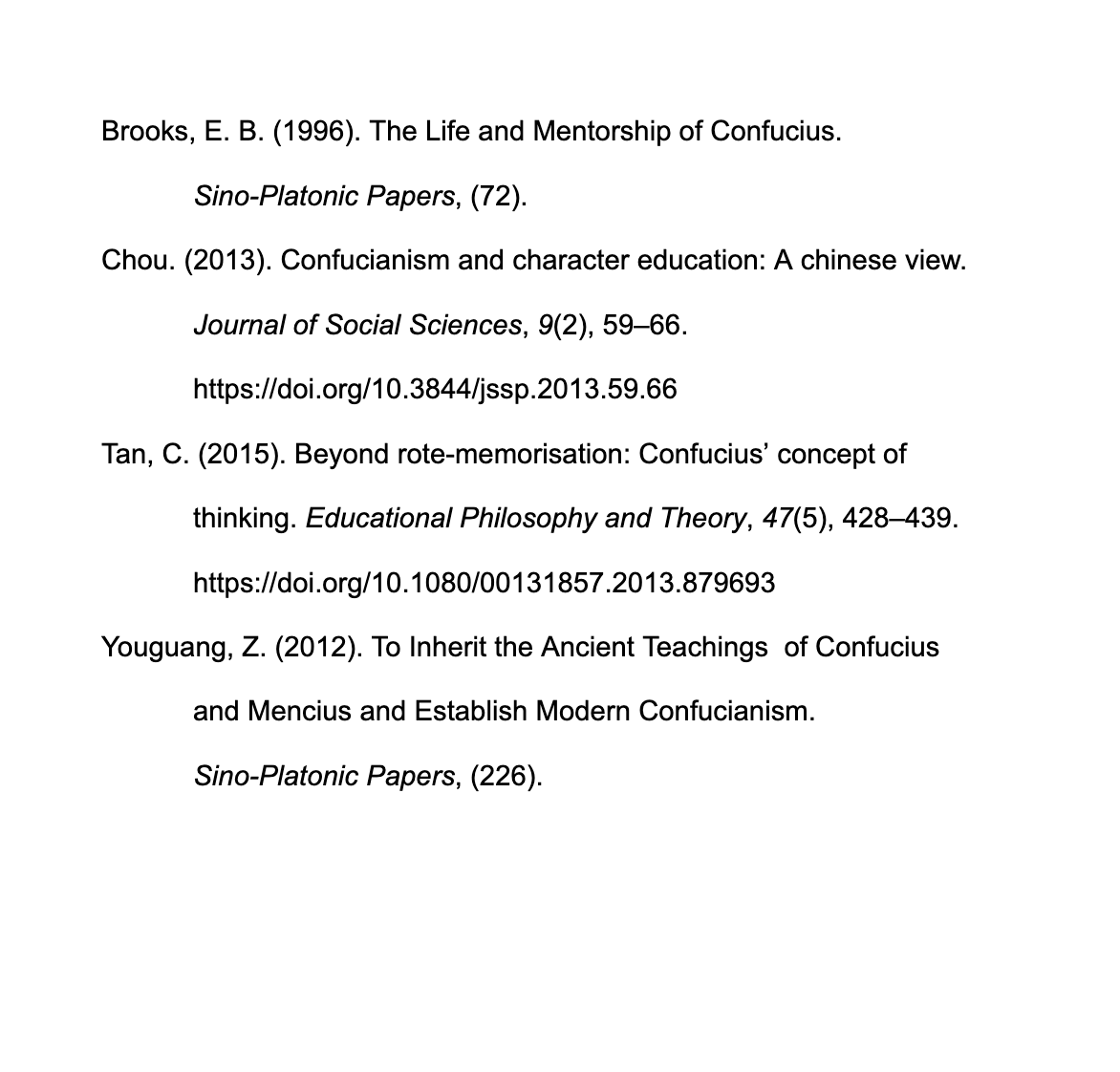
A couple of comments:
- You’ll notice I added an extra reference, from Chou, before generating the list.
- Some of the metadata needs improving (odd spacing in the paper by Youguang, inconsistent capitalisation), but I can correct this directly in Zotero and regenerate the references and bibliography. Once my metadata in Zotero is correct, I can use it anywhere.
What Now?
And that’s how easy it is. There are lots of other tricks you can perform with Zotero, but this is enough to get you started. Spend a week or two playing around with it, see what it can do for you! Get in touch if you have any questions.